
OntoSecurity Secure Your Spreadsheet Data
A Google Workspace Add-on that lets you hide and lock selected columns in Google Sheets to control data visibility and editing. Protect sensitive information with role-based column access.
The Challenge
Teams sharing Google Sheets face real risks when sensitive columns are exposed to the wrong people
No Column-Level Security
Google Sheets lacks native support for hiding or locking individual columns per user or role
Data Over-Exposure
Collaborators see everything, including salary data, personal info, or financial figures they shouldn't access
Accidental Edits
Without column locking, anyone with edit access can accidentally modify critical data fields
Our Solution
OntoSecurity gives you fine-grained column-level control directly inside Google Sheets
Powerful Column Security
Hide Selected Columns
Choose which columns to hide from specific users, keeping sensitive data invisible to unauthorized collaborators
Lock Columns from Editing
Prevent accidental or unauthorized changes to critical columns while still allowing viewing access
Google Account Authorization
Uses Google account email for identification, ensuring only authorized users can manage column visibility and locks
Privacy First
No data leaves Google Sheets. All functionality runs within Google Apps Script with zero external servers
Instant Setup
Install the add-on and start securing columns immediately, no configuration or external accounts required
Team Collaboration
Share sheets confidently knowing each team member only sees and edits what they should
How It Works
Secure your spreadsheet data in four simple steps
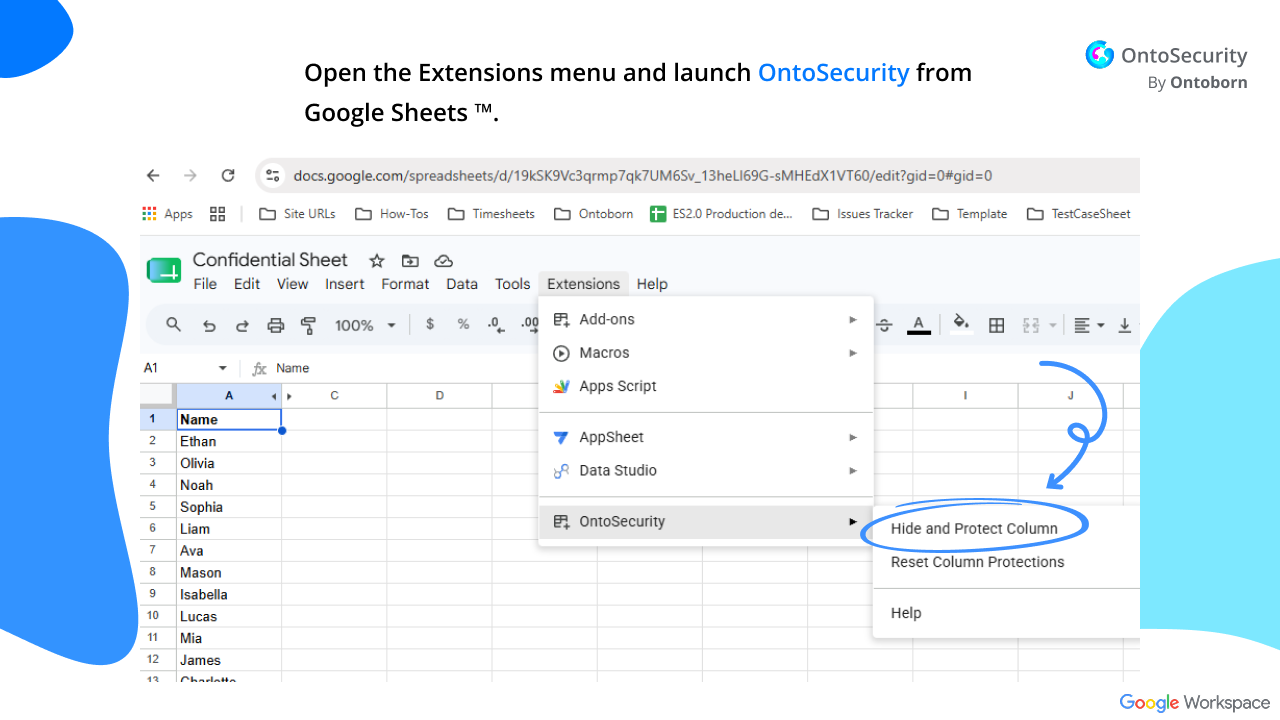
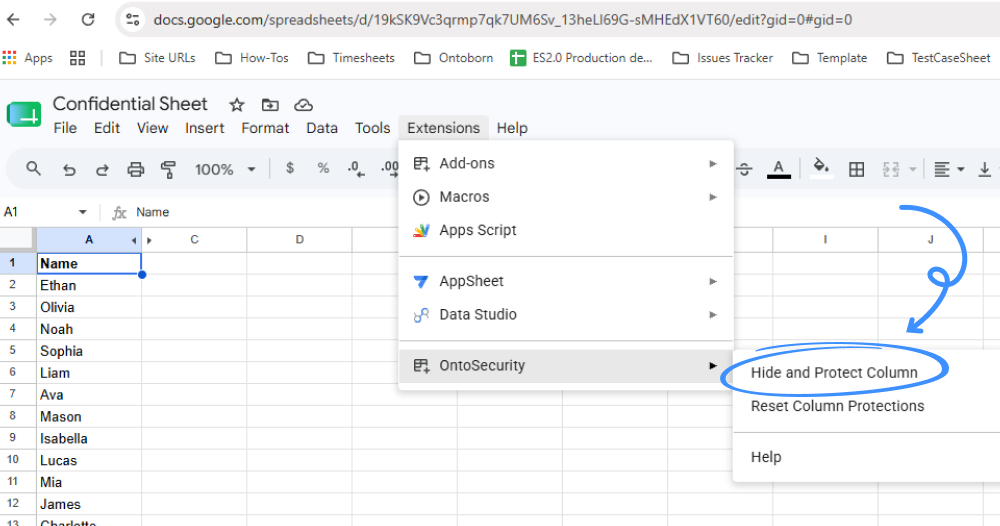
Launch OntoSecurity
Open the Extensions menu in Google Sheets and select OntoSecurity → Hide and Protect Column
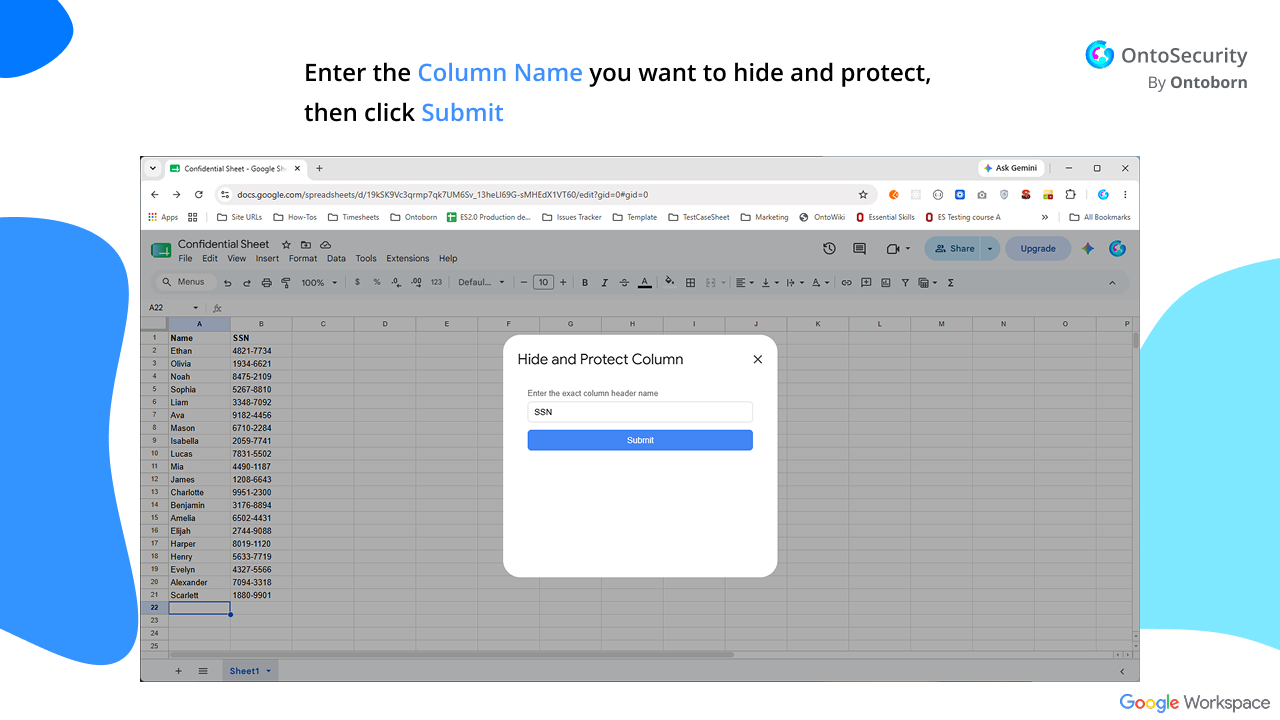
Select Columns to Protect
Enter the column header name you want to hide and protect, then click Submit
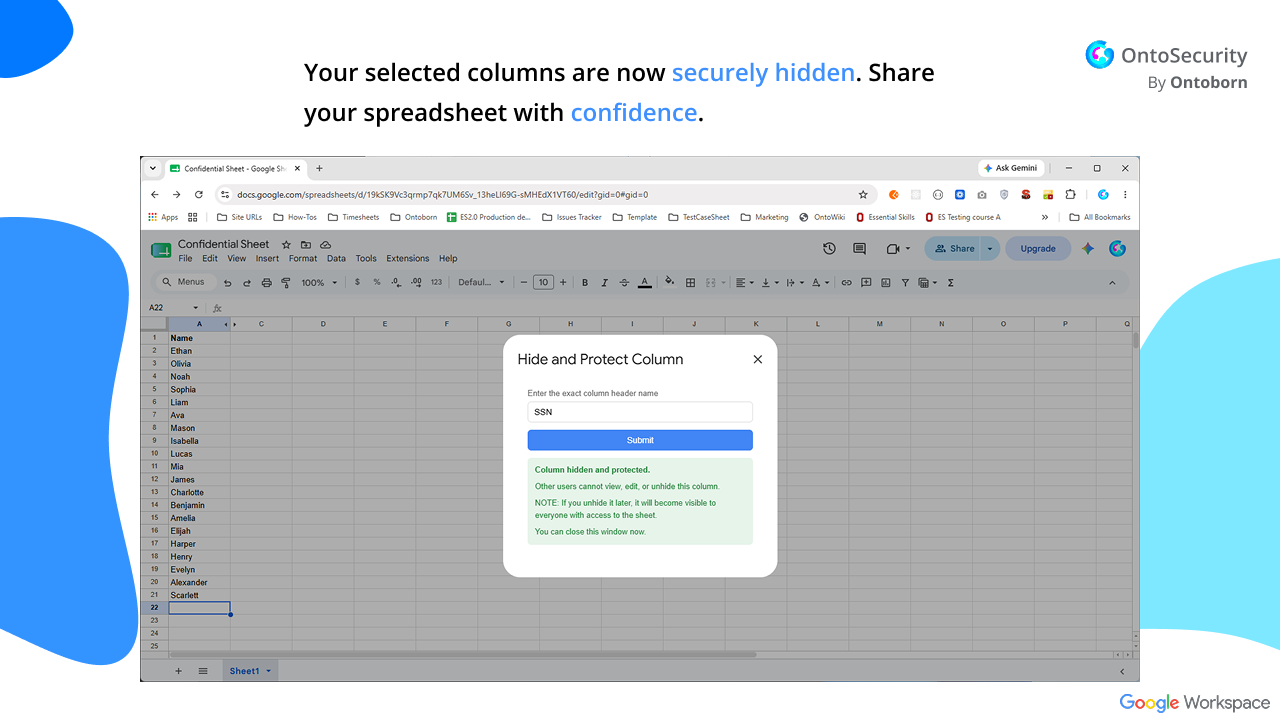
Columns Secured
Your selected columns are now securely hidden. Share your spreadsheet with confidence
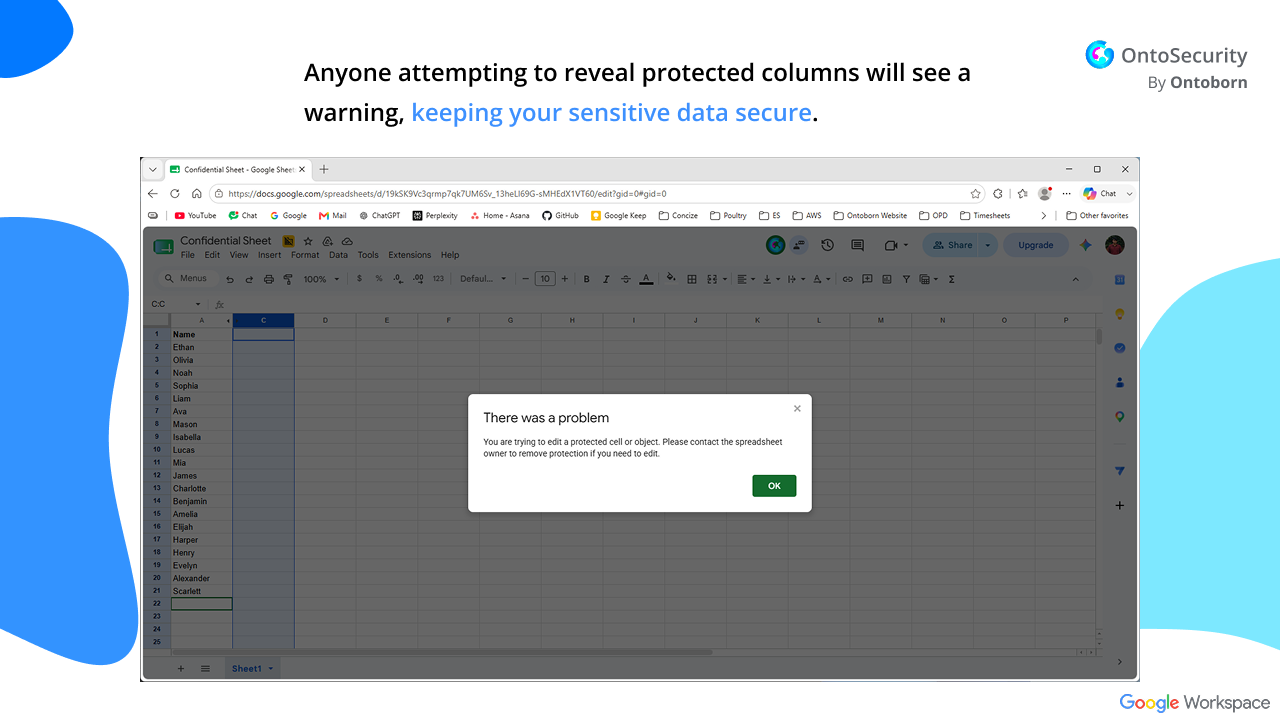
Protection Enforced
Anyone attempting to reveal protected columns will see a warning, keeping your sensitive data secure
Privacy Policy
OntoSecurity does not collect, store, or transmit any personal or spreadsheet data.
The add-on only uses the Google account email address provided by Google for authorization and identification. No user data or spreadsheet content is stored on external servers.
All functionality runs within Google Sheets using Google Apps Script.